“LinkedIn is no longer an online resume. It’s your digital reputation.” – Jill Rowley
Learning LinkedIn for Students
Hey there! Today we will be talking about the platform LinkedIn and what I have learned from the Course “Learning LinkedIn for students” instructed by Oliver Schinkten. During this course he takes the perspective of a student and goes through step by step on how to create a profile, features LinkedIn offers, building your network and how to begin searching for jobs and opportunities to start developing your career.
Create a LinkedIn profile
Setup account
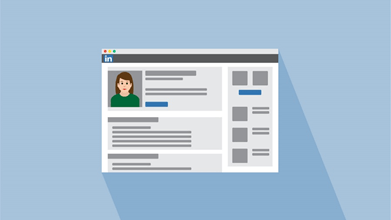
First you can begin signing up for an account by navigating to LinkedIn.com and filling in your name, email and password you want to use. It is wise to create a quality password for your account since you’ll be sharing very personal information inside of your profile. Will then ask to select the country you live in and if you are a student or not. You have the option then to link your email contacts to your profile to start finding connections right away. The last page allows you to add a photo. Once through all the above steps, you are ready to start customizing your profile.
Add a photo and background image
Having a photo of yourself allows you to attract many more views to your account than a profile without one. To add a photo just simply click on the camera icon in the center of your profile and it will bring you to your documents allowing you to choose which ever one you want. Once you have selected LinkedIn has a great tool, allowing you to edit your picture however you want.
When selecting your photo take into consideration the following:
- Recent photo
- Proper framing
- Quality of the picture
- Professionalism (LinkedIn is a professional platform)
Another great image to add is a background image. Adding a background image will make your account stand out over the others. To select a background image, click on the pencil icon to find your “edit profile” page, once their simply follow the same steps as you did with your profile picture, but this time selecting a background image.
Personalize your headline

When people visit your profile, the first thing they will see is your picture and background, but the first thing people will read is your headline. Be sure to use something that defines who you are and what you want to become. Use keywords to have your account pop up when searched by others.
Add a summary
The summary section is an extremely important part for your profile. It is an opportunity to share some of the accomplishments but also to share your mission statement, your career goals and aspirations, personality and why it is you do what you do (Schinkten, 2019). Like your headline, use keywords to allow your profile to pop up when those words are searched. To edit your summary, refer back to the pencil icon and scroll down to the summary section. When writing your summary note that only your first sentences will show, so make it attention grabbing so people want to read further about you.
You can create the rest of your profile before summary if you want it may give you more insight to what you want your summary to look like. Spend sometime considering the following
- Who are you? What defines you?
- What is it that you do and why is it that you do it?
Work experience or volunteering
To add work experience or volunteering, click on the “add new profile section” drop down menu on the right-hand side. This will allow you to add any experience or volunteering you have done. Bullet points are best for this section, as it makes it easy for people to read. Volunteer experience can as well make your profile stand out over others, it is attractive to collogues and employers.
Education
As a student the education section is extremely important. List not only the schools you are attending or have attended, but also any majors or degrees that you have earned or are currently working towards. You can also add any clubs or extracurricular activities that you participated in. This can be put in the “Activities and societies” section.

To add education, click on the plus button under education which allows you to edit your current education or add anymore that you have completed in the past. In the description it is recommended to use bulletin form for the same reason as the work experience and volunteering section.
Add skills and endorsements
You are also able to add your skills to your profile. It is recommended to add at least 5-10 skills at the beginning, but you can add up to 50. LinkedIn members with more than five skills listed on their account are 27 times more likely to be discovered in searches by recruiters (Schinkten, 2019). It is important to add these skills so you will be able to receive endorsements for those skills from others once you grow your network.

You can start receiving endorsements by asking people that you have collaborated with:
- Classmates
- Professors
- Coworkers
If you’ve truly demonstrated these skills, people will usually be happy to endorse you for them.
Recommendations
Recommendations are more in depth than asking someone to endorse you, but it gives and opportunity for someone to express your skills in a more detailed manner.It may be a boss, instructor or professor. Or anyone that you have collaborated on a project with.
Before asking someone for a recommendation, be sure they are a first connection of yours on LinkedIn, meaning you are connected to them as well as them to you.To request a recommendation, you can go to the profile of who you want to request and click on the “more…” dropdown and click request a recommendation. As well on that drop-down menu is the option to write a recommendation for them. Make sure not to abuse this feature. You should only receive recommendations from people that you’ve had the opportunity to collaborate with, who can truly speak about the value that you provide.
Add additional sections
There are many additional sections you can add to your profile. To find them refer to the “add new profile section” dropdown at the right-hand side of your profile and click on accomplishments. This is where a list of different types of sections you are able to add to your profile.
Configure your public profile
When someone searches for you online, for example, on Google, often, one of the first things that they’ll come across is your public LinkedIn profile (Schinkten, 2019). They’ll be able to view this without being logged into LinkedIn. You are able to customize what people can see on your public profile by customizing the settings. To do this click on the “edit public profile and URL” on the right-hand side of your profile. This will give you many different options for you to edit your public profile. LinkedIn will provide an image of your public profile so you are able to see exactly what others can see when they search for you.
Within this page your also able to customize your URL as well. You can customize your URL so that it’s easier to share. You may want to share it on something like a business card, a resume, or an email signature.
Build Your LinkedIn Network

Create a professional network
Connecting with other professionals and creating a solid professional network is one of the most empowering things that you can do A strong professional network can help to provide insight and advice, knowledge and the exchange of ideas, collaboration opportunities, access to resources, and often it will open the door to job opportunities.
Two of the most popular ways that companies find new hires are through employee referrals and social professional networks (Schinkten, 2019).
Consider connecting with the following three types of people to build your network:
- The advocate: This is usually somebody that you know on a personal level.
- The strategic “in”: Someone who’s well-connected.
- The subject matter expert: Someone who offers superior insight on a specific industry.
Connect with people on LinkedIn

One of the great benefits of LinkedIn is how quickly and efficiently you can create a powerful network of connections. There are several different ways you can find connections:
- Search for a specific person
- Search for a company and then view their employees
- Search an industry
- Using the My Network tab and connecting with email contacts
- Using LinkedIn’s “People you may know” page
Improve your LinkedIn search
When searching on LinkedIn you may see millions of accounts pop up if your search is too vague. You can use filters when searching to narrow your search down. These filters can be found on the right-hand side of the page when searching.
Another tip that can help you when searching on LinkedIn is to utilize Boolean modifiers and search operators.
Boolean Modifiers:
- “quotation”: used to find exact phrases.
- (parentheses): allow you to perform more complex searches using Boolean logic
- NOT, OR, AND (all caps)
- Used to narrow down your search
Search operators:
- First name
- Last name
- Company
- School
LinkedIn groups
LinkedIn groups are trusted communities where professionals with shared interests can ask questions, share insights, and build meaningful connections. As a student groups are a great way to connect with other professionals who are interested in a specific topic. In the home tab you can find a tab for groups on the left-hand side. Inside the groups tab you can find several groups listed and all have links to bring you to their homepage.

Using LinkedIn Day-to-Day
LinkedIn Newsfeed
You are able to access your LinkedIn newsfeed at any time by simply clicking on the Home icon at the top of the page. LinkedIn’s algorithm does an amazing job of customizing this for you, showing what you are most interested in (Schinkten, 2019). Most of the articles shown are of excellent quality and will help you keep up to date and give you a sense of what’s trending. Use the newsfeed to keep yourself up to date on news and trends related to your field.
Follow companies and influencers
As you begin to follow more people, groups, companies, and more on LinkedIn, your news feed will become more and more customized. For this reason, Oliver recommends you start searching for some companies that you’re interested in and then following them.
You are able to follow someone without connecting with them. Following someone will have their post pop up in your news feed, but your profiles are not actually connected. It is recommended that you follow influencers that are thought leaders in certain industries. LinkedIn has a page that recommends influencers that you should follow. You can access this by navigating to linkedin.com/feed/follow (Schinkten, 2019).
Digital footprint: Build your brand
Nearly everything you do online contributes to your digital footprint, which is essentially becoming your own personal brand (Schinkten, 2019).

Majority of employers have reported that they look up potential candidates online when considering who to hire. LinkedIn is one of the major platforms that they look at (Schinkten, 2019).
Avoid a negative footprint by staying away from:
- References to drugs an alcohol
- Bad mouthing others
- Discriminatory behaviour
- Poor communication skills
- And any other negative behaviours
Build a positive digital footprint by:
- Convey a strong professional image
- Personality is a fit with the company culture
- Showed great communication skills
- Well rounded
- Wide range of interests
Share updates and content
Opportunity to share content and updates in order to provide value to your network and help build your personal brand. When you come across interesting articles or news stories related to the field, you’re in, share them with your network. In doing so, not only do you provide great value for others, but you also help to brand yourself as a thought leader in your field (Schinkten, 2019).
Publish Articles
LinkedIn’s platform makes it easy for you to write pots, make it look professional and then share it with your network. On your home page you can find a button that says “Write an Article”. Here is where you are able to create your own article. Once you have made the post, LinkedIn gives you data about your post like the amount of views, reshares etc.
Send and receive messages
At the top of your LinkedIn page you can find a messaging button. In here you able to create a new message or view any old conversation’s you have had between someone. Another feature on LinkedIn is, instead of having to go to the separate messaging tab you can find a quick chat in the bottom right corner of LinkedIn. Here is a handy pop up tool to send out and view your messages without having to stop what you are doing.
Job Search and Company Research
Explore potential careers and companies
If you are searching for jobs. LinkedIn can act as an excellent tool providing you with insight, guidance and inspiration (Schinkten, 2019). A great way to use LinkedIn to find potential careers is to search for different companies. Take a look at companies LinkedIn page and see if this is a company that you would be interested in. Company pages on LinkedIn are filled with valuable information related to a specific company. If you are following a company, their posts can be found in your news feed.

To search for jobs, you can click on the button “jobs” at the top of the page. Here you will be able to find jobs that are fit for what you are looking for, you may find jobs that you weren’t aware are being offered. Another way to search is using the search engine in LinkedIn and search for your industry and use the filter option to view jobs, being offered in that field.
LinkedIn also offers you to create a job alert allowing you to be notified if any job appears that you are looking for. To set up a job alert just simply navigate yourself to the job tab and then click the job alert button.
Manage Your LinkedIn Account
LinkedIn Premium
LinkedIn premium offers a few more options then a free version. Some of these differences are:
- Ability to send InMail
- You can view company insights
- Move up on job applications,
- See who’s viewing your profile
Explore privacy settings and account types
Any time you participate in a social network, Oliver highly recommends that you explore and customize your privacy and account settings. To adjust these settings, you need to click the Me drop down menu and then click on privacy and Settings. In here you will find three tabs; Account, Privacy and Communications. All of these tabs have options to customize your privacy setting.

Downloading your data and permanently deleting your account
It may be a good idea from time to time to backup and download your data on LinkedIn. To do this you are going to want to navigate yourself to the top of the page and click on the Me drop down menu, from here, select Settings and Privacy. Once in this tab you have the option to backup and download your data.
You also have the option to completely delete your account. Be careful with this option because once you delete your account there is no way getting it back unless you have saved it elsewhere.
Conclusion
In my own opinion, LinkedIn is the best sight to create a profile that shows off the personal brand you have created for yourself. It lets others see your major accomplishments, awards, as well as your goals. With the use of the tips given in this blog you will be able to create a very strong profile for yourself and can start growing your LinkedIn network. With the help of keywords within your profile, it will help attract employers and other people that are related to your field of work. Before this course I personally had not created a LinkedIn profile, but as I went through it I slowly started to build myself a strong profile for myself.
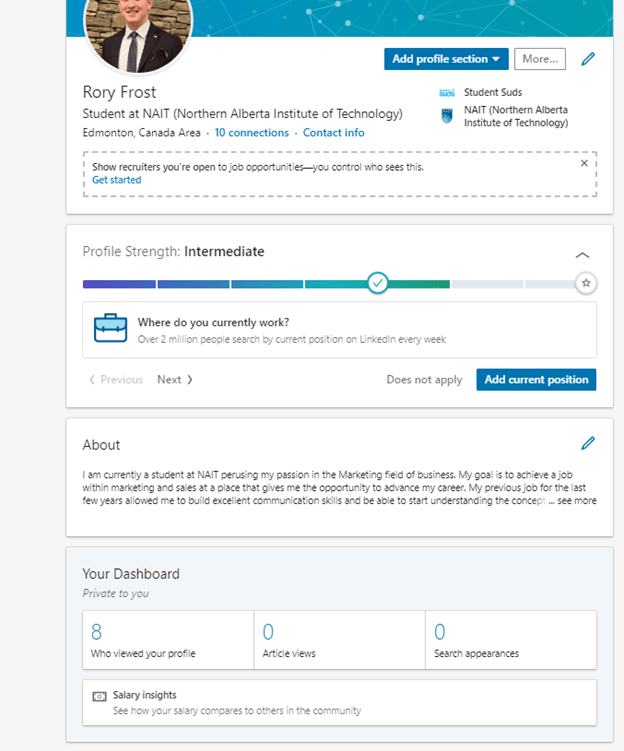
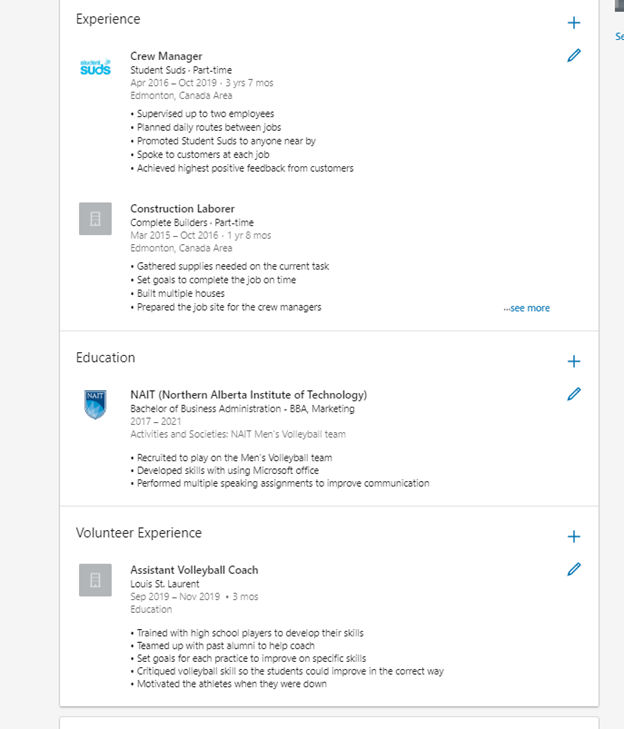
My profile still can use a few touch ups, like my background image which I have not added yet, but overall I am very pleased with the profile I have created. I will continuously be updating my profile as I continue on into the future, adding any more skills or experiences I find my self achieving. LinkedIn is a very powerful platform to help your career. I would highly recommend going back through the steps I have given you and start creating your profile right now!
References
Schinkten, O. (2018, October 18). Learning LinkedIn for Students. Retrieved from https://www.linkedin.com/learning/learning-linkedin-for-students/welcome?u=2109516
Michaeldb. Connect people business social network line image. Retrieved from
CBR. New services still require core IT skills. Retrieved from https://www.cbronline.com/digital-transformation/new-services-still-require-core-skills/
Callahan, S. (2017, June 13). 101 Sales and Marketing Quotes to Read Before Setting Your Strategy. Retrieved from https://business.linkedin.com/marketing-solutions/blog/content-marketing-thought-leaders/2017/101-sales-and-marketing-quotes-to-read-before-setting-your-strat
 Rory Frost